From how.doxadeo.org
m Trying WYSIWIG editor... hopefully then images will be rendered. |
m Fiddling with images to try to get them to be visible! |
||
| Line 3: | Line 3: | ||
The purpose of Cyan is to make it easier for someone on a stage to interact with the sound system—adjusting your mix so that you can hear what you need to hear. | The purpose of Cyan is to make it easier for someone on a stage to interact with the sound system—adjusting your mix so that you can hear what you need to hear. | ||
=== Steps to follow: === | === Steps to follow during sound check: === | ||
# Using your mobile device, connect to the campus network, typically the WiFi network “BL Guest” | # Using your mobile device, connect to the campus network, typically the WiFi network “BL Guest” | ||
# Connect to Cyan App via any of: | # Connect to Cyan App via any of: | ||
| Line 23: | Line 23: | ||
### Second is vocals | ### Second is vocals | ||
### Then everything else, end with track (which has click (metronome), cue (vocal cue for start of verse / chorus, etc., track (additional instruments and possibly vocals)) | ### Then everything else, end with track (which has click (metronome), cue (vocal cue for start of verse / chorus, etc., track (additional instruments and possibly vocals)) | ||
## For rough adjustment, use the fader on the left (up louder, down softer), and the pan at the bottom <pic src="images/2/20/Cyan.Dark.Channel.Single.jpeg" width=300px align=center caption="Single channel adjustment, showing adjustment of level (vertical green arrows) and pan (horizontal green arrows)" /> | ## For rough adjustment, use the fader on the left (up louder, down softer), and the pan at the bottom | ||
<pic src="images/2/20/Cyan.Dark.Channel.Single.jpeg" width=300px align=center caption="Single channel adjustment, showing adjustment of level (vertical green arrows) and pan (horizontal green arrows)" /> | |||
## For fine adjustment, use the “trackpad” (up louder, right pans right, down softer, left pans left) | ## For fine adjustment, use the “trackpad” (up louder, right pans right, down softer, left pans left) | ||
## You can adjust the master (overall) volume by selecting the top item on the list | ## You can adjust the master (overall) volume by selecting the top item on the list | ||
Revision as of 06:04, 18 May 2026
Cyan
The purpose of Cyan is to make it easier for someone on a stage to interact with the sound system—adjusting your mix so that you can hear what you need to hear.
Steps to follow during sound check:
- Using your mobile device, connect to the campus network, typically the WiFi network “BL Guest”
- Connect to Cyan App via any of:
- http://192.168.101.13:5173/
- Scan the QR code labelled “Cyan”, on the DB cover backstage, just outside Martin’s office
- Identify yourself:
- Enter your name and surname, and last four digits of cell number and press Submit
- If your phone doesn’t say “Welcome to Cyan”, ask for help from the sound person or the Music Director
- Select your role, which is the name of your IEM line, which depends on what you’re doing on stage:
- Vocals-only are Vox 1 (left, from audience’s perspective) through to Vox 5 (right)
- Lead left is the mic on the stand at the front of the stage on the left (from audience’s perspective), normally used with acoustic guitar
- Lead right is the mic on the stand at the front of the stage on the right, normally used by Martin
- Piano is on the left, Keyboard on the right
- Drums, Bass are self-explanatory
- Check that your own inputs work: You should hear yourself in your headphones
- Select the tree icon
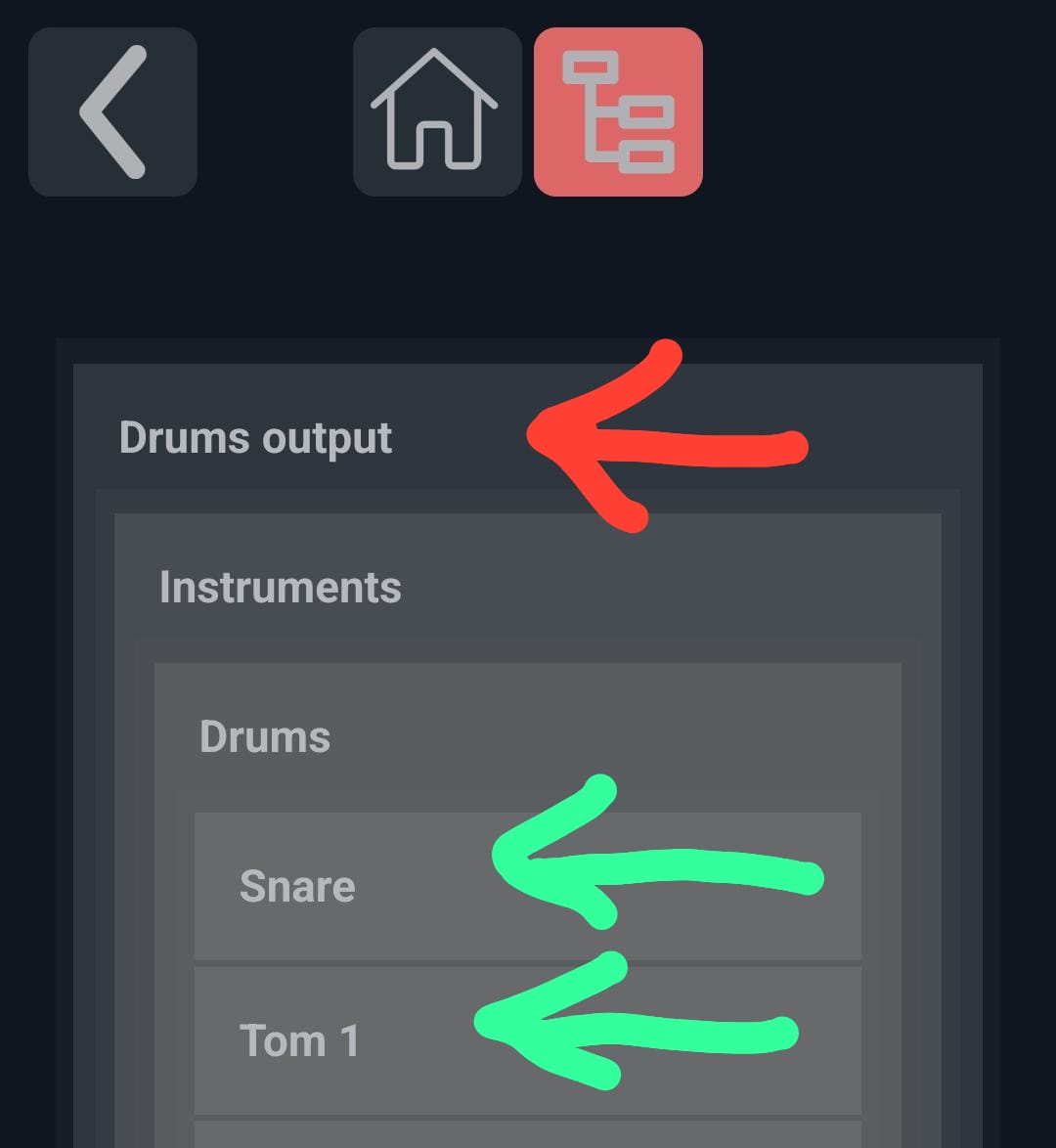
Tree view, showing aux master (red) and individual channels (green)
- On the list select your input:
- First is instruments (including Drums)
- Second is vocals
- Then everything else, end with track (which has click (metronome), cue (vocal cue for start of verse / chorus, etc., track (additional instruments and possibly vocals))
- For rough adjustment, use the fader on the left (up louder, down softer), and the pan at the bottom
- Select the tree icon
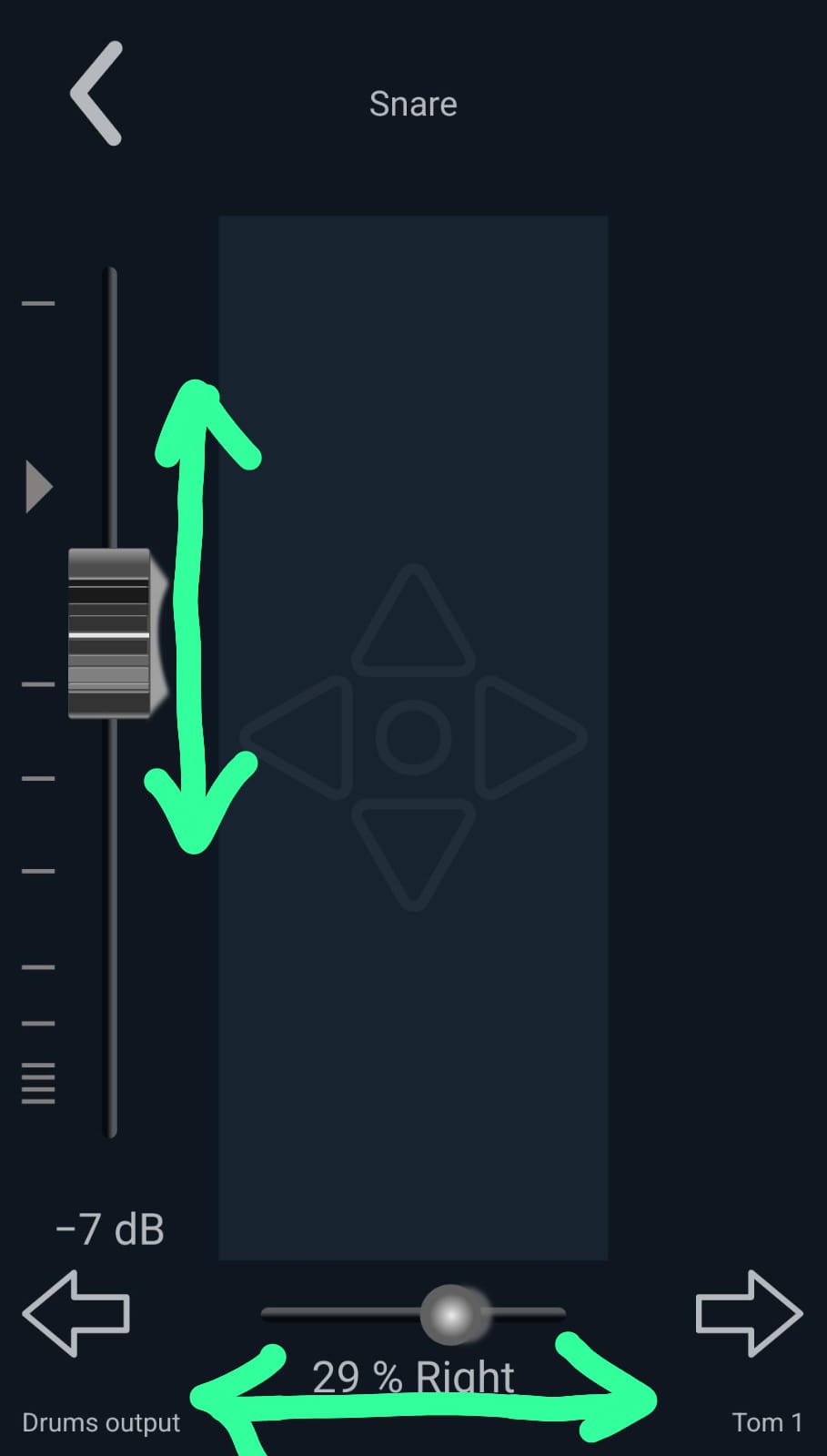 |
Single channel adjustment, showing adjustment of level (vertical green arrows) and pan (horizontal green arrows) |
- For fine adjustment, use the “trackpad” (up louder, right pans right, down softer, left pans left)
- You can adjust the master (overall) volume by selecting the top item on the list
- Adjust mix as each person is asked to do play or sing in turn:
- The order is typically: drums, bass guitar, electric guitar, acoustic, keyboard, piano, vocals—first lead vocals then backing vocals, click, track, metronome
- Be careful of just adding things because the overall volume eventually becomes too loud; rather make less important things softer
- Adjust mix as needed during rehearsal