From how.doxadeo.org
Created page with "== Projector switch on == Ensure that all projectors are switched on. 1. Launch PowerVC application which allows for remote control of some of the projectors from the taskbar (circled red below) or from Desktop shortcut <pic src="/images/7/7e/Powervc.png" width=40% align=text /> 2. Select “On” for all projectors <pic src="/images/9/97/Powervc-on.png" width=60% align=left /> 3. For Auditorium side projectors and stage screen, ensure that power is on. In corner e..." |
No edit summary |
||
| Line 17: | Line 17: | ||
<pic src="/images/5/5e/Epsom-remote.png" width=30% align=left /> | <pic src="/images/5/5e/Epsom-remote.png" width=30% align=left /> | ||
5. For the hall ensure that TVs are switched on and correct source selected. Remotes available in av cabinet in the corner. | |||
<pic src="/images/e/e7/Hall-remote.png" width=30% align=left /> | |||
Revision as of 09:21, 12 October 2025
Projector switch on
Ensure that all projectors are switched on.
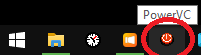
1. Launch PowerVC application which allows for remote control of some of the projectors from the taskbar (circled red below) or from Desktop shortcut
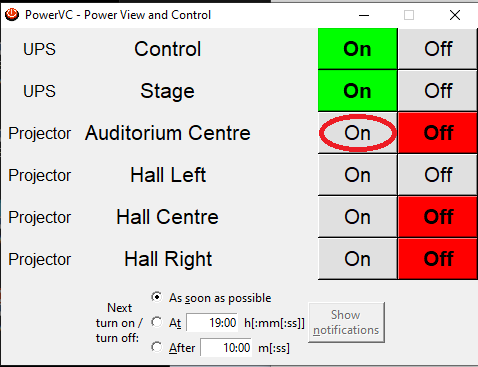
2. Select “On” for all projectors
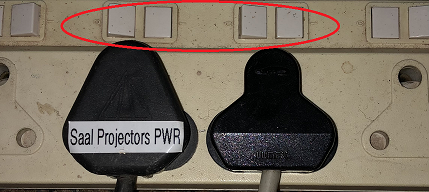
3. For Auditorium side projectors and stage screen, ensure that power is on. In corner electrical distribution board on the gallery, ensure that plugs marked are switched on at the multiplug.
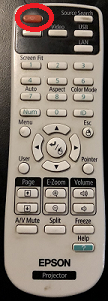
4. Use Epsom Projector remote, located next to Propresenter screen, and switch on Auditorium side screen projectors.
5. For the hall ensure that TVs are switched on and correct source selected. Remotes available in av cabinet in the corner.
