From how.doxadeo.org
Using ProPresenter for Independent Outputs
ProPresenter can drive two independent outputs. In the case of the Streaming PC, it has two such outputs:
- Presentation layer: HDMI output to ATEM Constellation video mixer, which is typically used for centre screen theme
- Announcement layer: NDI (Network Device Interface, i.e. virtual screen) output into OBS, that is overlaid on the program output OBS, taking opacity into account
Preparation for a series
- From the Communication Team, get the artwork for the series—as HD images in PNG format with alpha channel, where complete opacity is for the lower solid portion, and complete transparency for where the camera image is to be visible.
- Drag the artwork into the Media bin.
- Create a theme using those images... one way is to create a playlist item containing the images, and then create a theme from that.
- In the Theme editor (Show, Edit, Reflow, Bible, ... More => Themes), add appropriate text boxes.
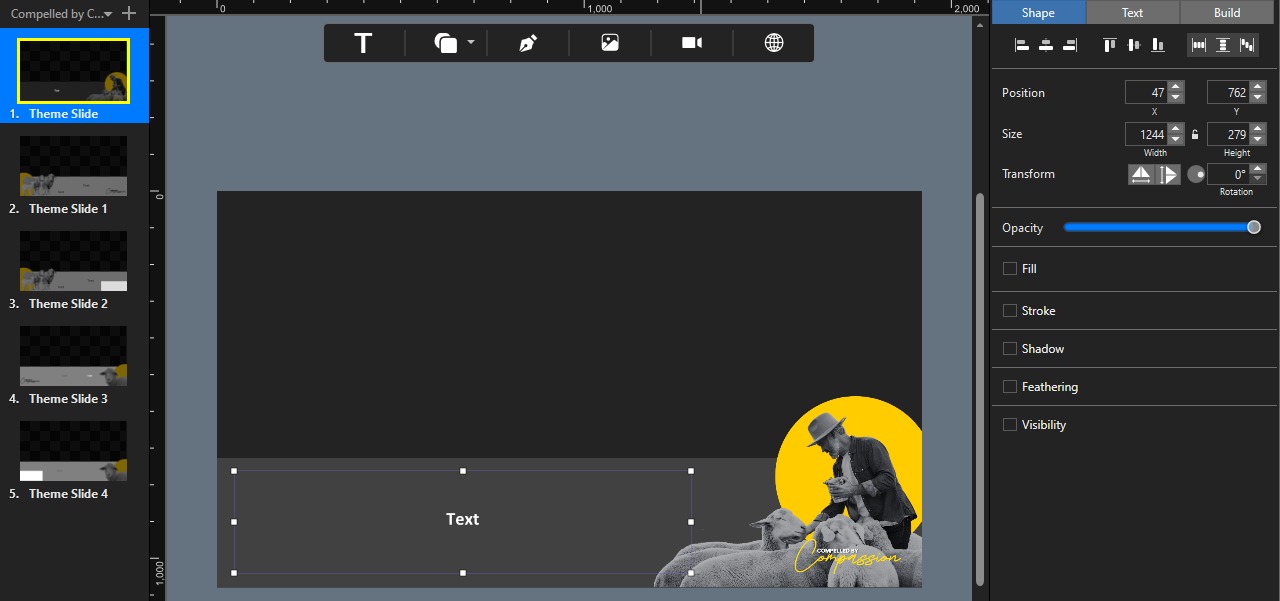 |
ProPresenter Theme editor, with individual slides and text box definition |
Building lower thirds for a specific sermon
- Create a Playlist for the particular service by clicking on the parent, and then the Plus at the top of the Playlists
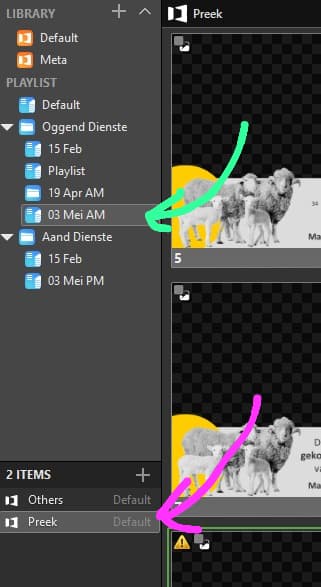 |
ProPresenter navigation: Playlists, each containing Items |
- In the Playlist, create an placeholder for the sermon, by clicking on the Plus at the top of the Playlist
- In the Placeholder, add an item, selecting the theme for the series
- The first slide is typically the preacher's name
- Add additional slides and text as appropriate
- Important: Set the sermon to the Announcements layer output... Items, by default, are on the Presentation layer, which goes to the video mixer, directly to the screens
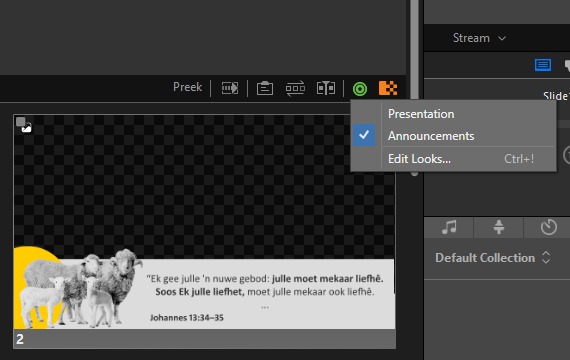 |
Layer set to Announcements |
- Add items before and/or after the sermon, for the Presentation layer (typically Welcome and theme slides), so that everything for the service is available in a single Playlist, for accessibility during the service
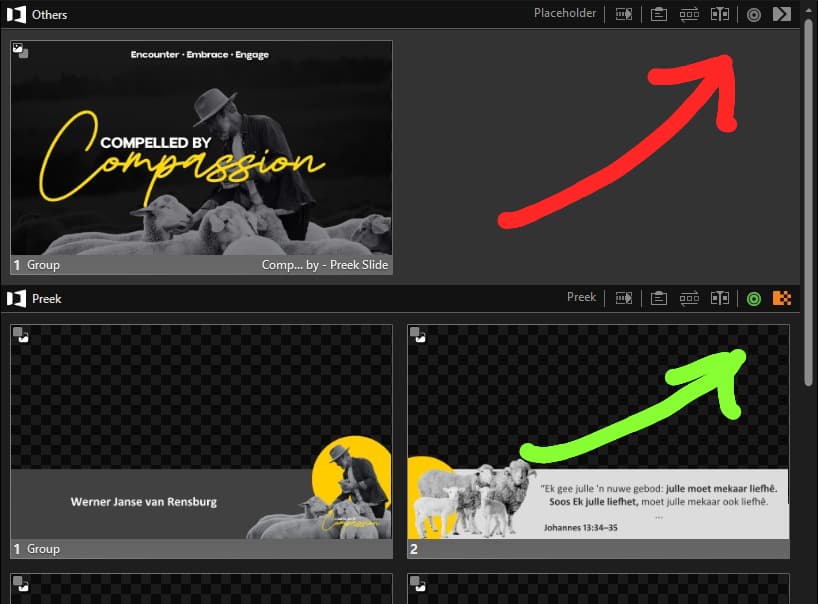 |
Target layer: Default is Presentation (grey double circle), or specifically set (green double circle) |
Notes:
- The current output on the Announcements layer can be cleared by clicking on the Announcements icon to the right of the Preview... Do NOT click on clear everything as that will also clear the image being sent to the screens (unless that really is what you intend to do)
- Dissolving (cross-fading) between images where the alpha channel changes isn't clean, but for the same solid image, it works well.