From how.doxadeo.org
Cyan
The purpose of Cyan is to make it easier for someone on a stage to interact with the sound system—adjusting your mix so that you can hear what you need to hear.
Steps to follow:
- Connect to the campus network, typically the WiFi network “BL Guest”
- Connect to Cyan App via any of:
- http://192.168.101.13:5173/
- Scan the QR code labelled “Cyan”, on the DB cover backstage, just outside Martin’s office
- Identify yourself:
- Enter your name and surname, and last four digits of cell number and press Submit
- If your phone doesn’t say “Welcome to Cyan”, ask for help from the sound person or the Music Director
- Select your role, which is the name of your IEM line, which depends on what you’re doing on stage:
- Vocals-only are Vox 1 (left, from audience’s perspective) through to Vox 5 (right)
- Lead left is the mic on the stand at the front of the stage on the left (from audience’s perspective), normally used with acoustic guitar
- Lead right is the mic on the stand at the front of the stage on the right, normally used by Martin
- Piano is on the left, Keyboard on the right
- Drums, Bass are self-explanatory
- Check that your own inputs work: You should hear yourself in your headphones
- Select the tree icon
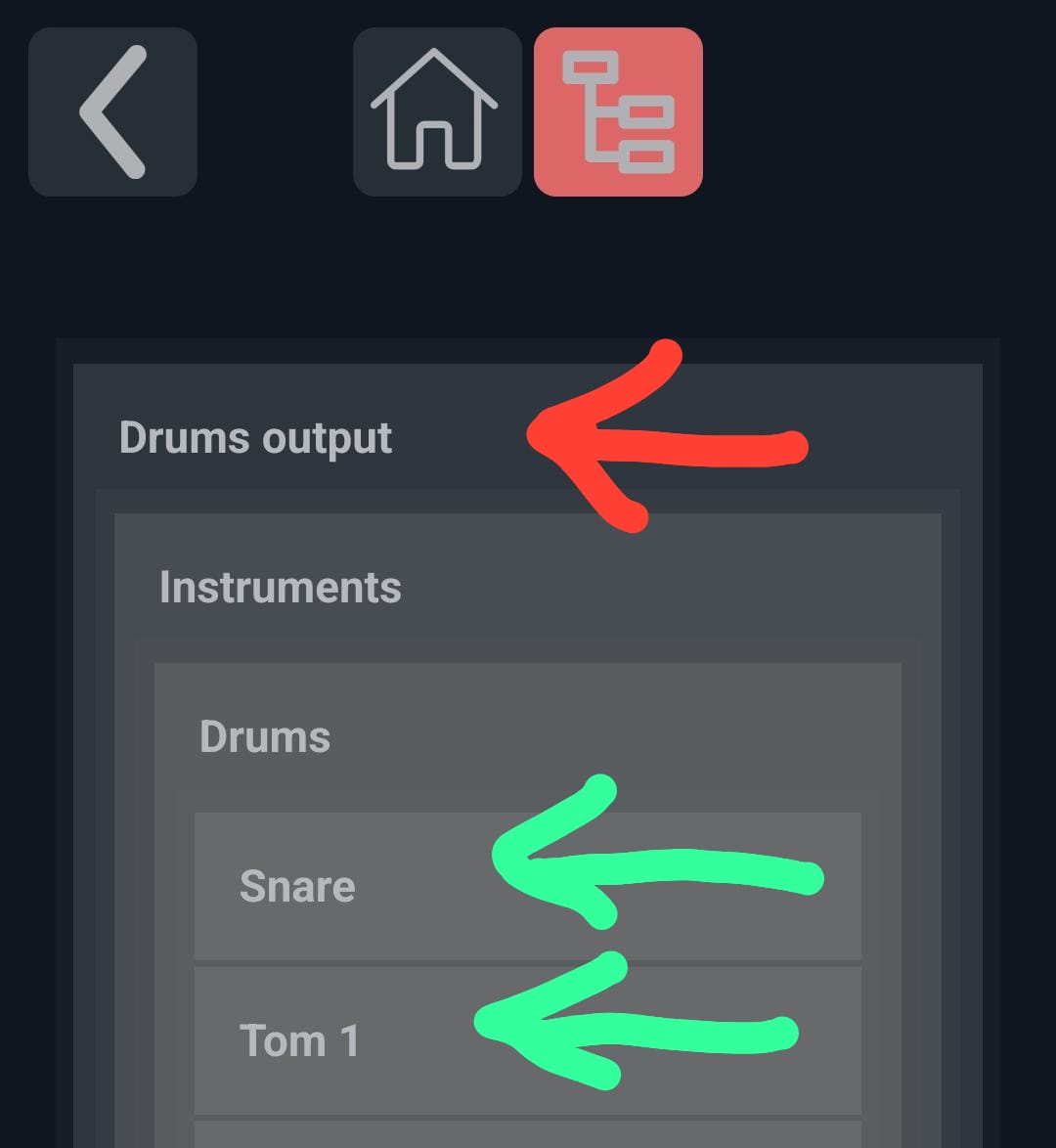
Tree view, showing aux master (red) and individual channels (green)
- On the list select your input:
- First is instruments (including Drums)
- Second is vocals
- Then everything else, end with track (which has click (metronome), cue (vocal cue for start of verse / chorus, etc., track (additional instruments and possibly vocals))
- For rough adjustment, use the fader on the left (up louder, down softer), and the pan at the bottom
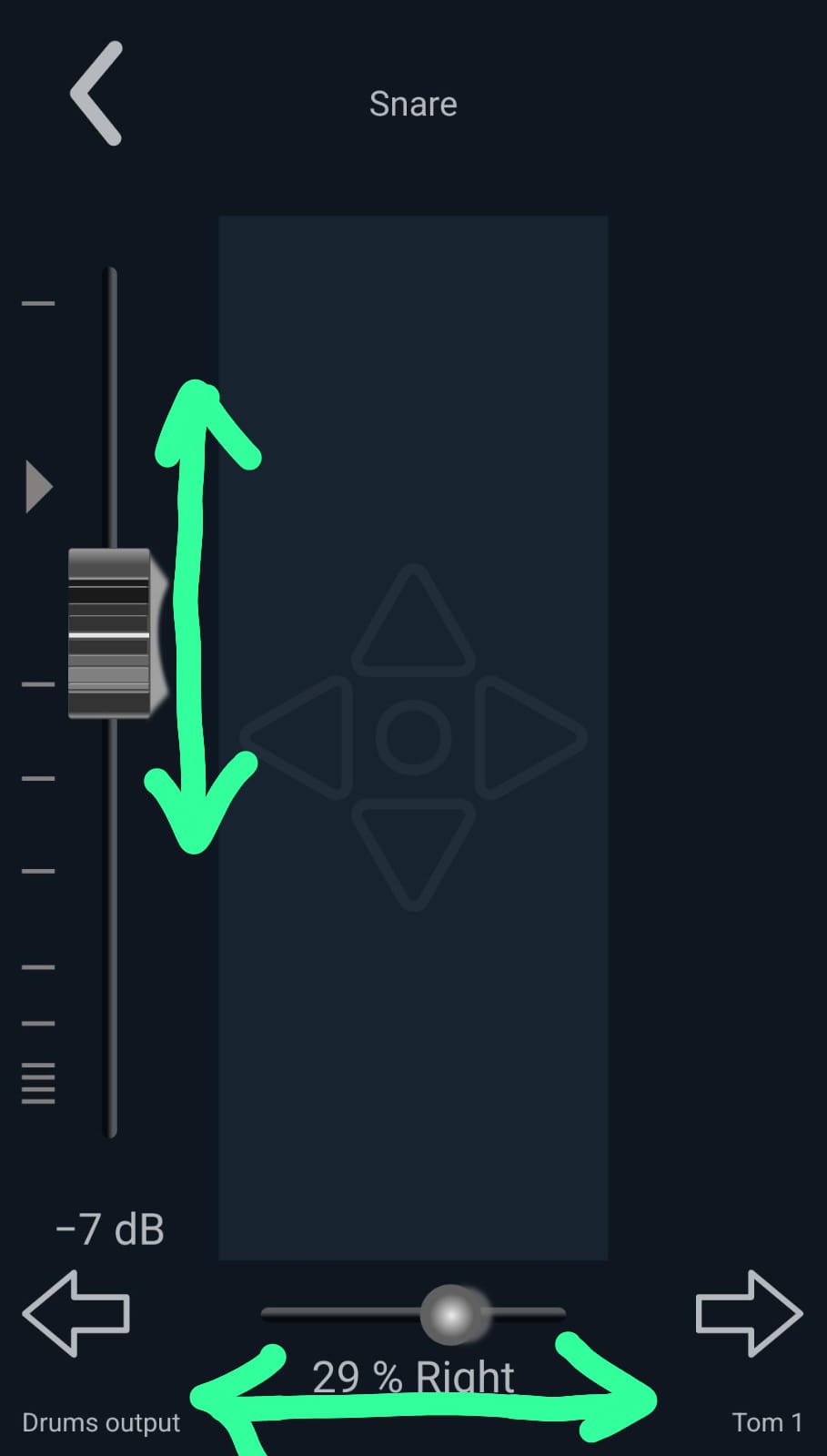
Single channel adjustment, showing adjustment of level (vertical green arrows) and pan (horizontal green arrows)
- For fine adjustment, use the “trackpad” (up louder, right pans right, down softer, left pans left)
- You can adjust the master (overall) volume by selecting the top item on the list
- Select the tree icon
- Adjust mix as each person is asked to do play or sing in turn:
- The order is typically: drums, bass guitar, electric guitar, acoustic, keyboard, piano, vocals—first lead vocals then backing vocals, click, track, metronome
- Be careful of just adding things because the overall volume eventually becomes too loud; rather make less important things softer
- Adjust mix as needed during rehearsal